
How To Fix “Instagram Couldn’t Refresh Feed” Problem?
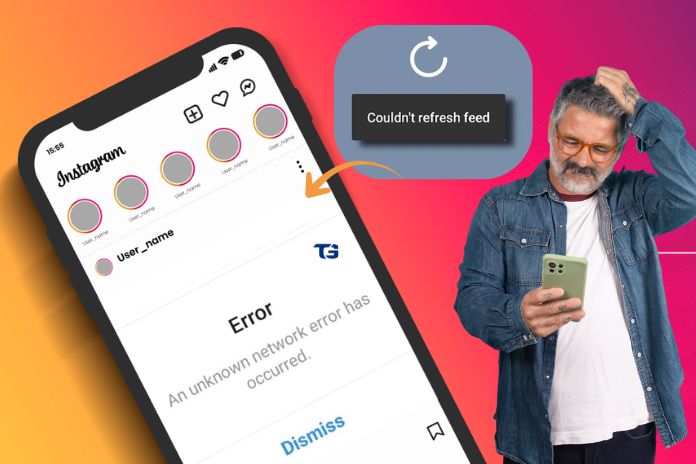
Instagram is one of the most popular social media platforms in the world. People scroll through it daily to view pictures, videos, and updates about their friends, creators, and brands. Sometimes you may encounter an annoying message: “Instagram Couldn’t Refresh Feed.” When this message appears, you may be unable to use Instagram normally.
In this guide, let’s explore the reasons for the error, why it occurs, and how you can correct it easily by following simple steps.
What Does “Instagram Couldn’t Refresh Feed” Mean?
This error usually appears when Instagram cannot load new content in your feed. Simply put, the app is trying to load new posts, stories, or updates, but something is preventing it from doing so.
This error is not always the same. It may be a small glitch in the application, or your internet, or it may not be your fault. In any case, it is frustrating because the latest feed updates will not load and you are left staring at an empty or frozen feed.
What Are The Causes Of “Instagram Couldn’t Refresh Feed” Error?
Poor Internet Connection
Poor internet connection might be one of the common causes for this error. Instagram requires a consistent internet connection to load content. If your Wi-Fi or mobile data is slow, unstable, or keeps disconnecting, Instagram may fail to refresh your feed.
Instagram Server Issues
Sometimes you face this error because the Instagram servers might be down. When Instagram’s servers experience outages or maintenance, many users may be affected by this issue. In such instances, your phone or the application is not the problem; you have to wait for sometime until the server maintenance is over.
Using An Outdated Version Of Instagram
Using the outdated version of the app may not support Instagram’s latest updates and features. This error can occur because of bugs, compatibility issues, or missing features in older app versions.
Corrupted Cache Or App Data
Instagram stores temporary files (cache) to improve performance over time. Sometimes this cached data becomes corrupted and this causes the app to behave unexpectedly, such as failing to “refresh the feed” error.
Account Related Restrictions
In case Instagram detects unusual activity about your account, or that you might have broken the rules of the community, it can temporarily restrict certain features of your account. As a result of this, your feed may fail to refresh.
Device Related Problems
This error may appear because of limited storage space, outdated system software, or device performance issues can also affect Instagram’s functionality.
How To Fix Instagram Couldn’t Refresh Feed Problem?
First Check Your Internet Connection
The first thing you need to do is check our internet connection. Switch between Wi-Fi and mobile data to see whether the feed loads properly. In case you are on Wi-Fi, rebooting your router is a good idea. It is also important to reset your network connection and turn Airplane mode on and off.
See If Instagram Is Down
If your internet connection is working properly, check whether Instagram is experiencing a widespread outage. Other websites, such as Down Detector, usually display live reports by other users. You can go to X (Twitter) or social media platforms to see if other users are reporting whether Instagram is down with the same issue.
Update The Instagram App
Make sure you have the latest version of Instagram. Visit the Google Play Store or Apple App Store and install any available updates. Many feed-related bugs are fixed through regular app updates.
Clear The Cache On Instagram Or Reinstall It
On Android, clearing the app cache (and data if necessary) can resolve issues caused by corrupted files. On iOS, the easiest solution is to delete and reinstall the app. Afterward, open Instagram again and check whether the feed refreshes properly.
Log Out And Log Back In
As simple as it sounds, logging out and back into your account can often resolve temporary synchronization issues. Close the app completely, wait a few seconds, and log in again.
Restart Your phone
A quick restart can resolve temporary system glitches and improve app performance. After restarting your phone, open Instagram and refresh the feed.
Reinstall Instagram
If none of the above solutions work, uninstall Instagram and reinstall it from the app store. This will delete any corrupted files and will provide you with a new setup.
Test Account Limitations
If you think your account has been restricted, check your email and Instagram notifications for any warnings or updates. Check your account status. You can view the account status by visiting the Instagram Help Center or contacting support in case you think the restriction is an error.
Free Up Storage Space
Low storage space can cause apps to malfunction. Deleting unused apps, old photos, or videos can improve your phone’s performance and help Instagram run more smoothly.
Basic Things You Need To Do To Prevent “Instagram Couldn’t Refresh Feed”
You cannot avoid all the glitches, but by following some steps will help you prevent the problem occurring in future.
- Keep Instagram updated
- Apply reliable internet connectivity.
- Clear app cache occasionally.
- Ensure that your phone has sufficient storage and that it works well.
Final Thoughts
The “Instagram Couldn’t Refresh Feed” error is frustrating, but it is usually not that serious. In most cases, the solution is simple, whether it involves fixing your internet connection, updating the app, or clearing cached data. Once you identify the cause of the problem, it becomes much easier to fix.
Also Read Related Articles:
